

Retail and grocery screens
Retail screen management: window, shelf and checkout displays from one panel
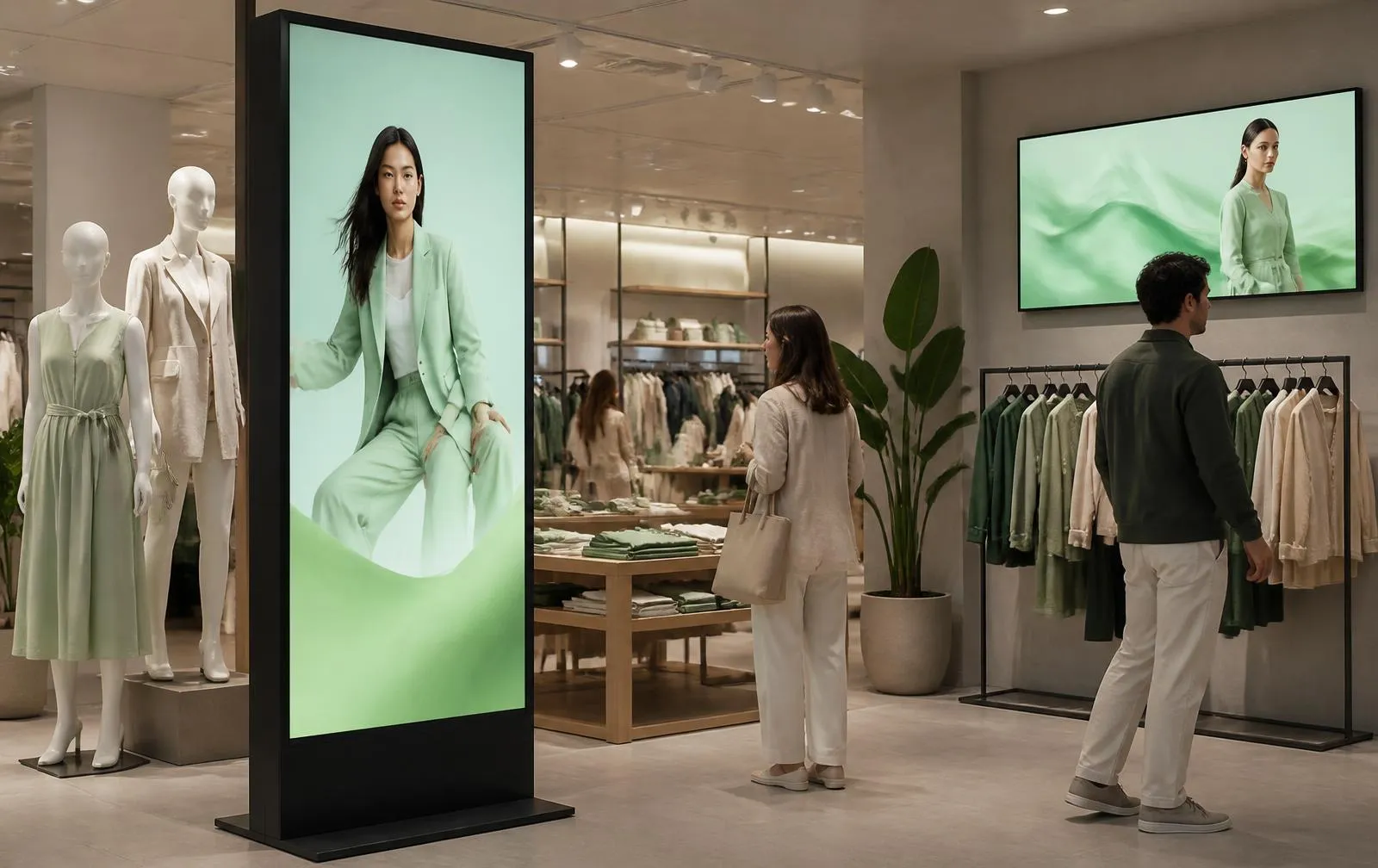
Digital screen management for retail chains. Build the campaign centrally, choose which store shows it at which hour, and publish to every window and shelf screen at once.
Problem
What usually goes wrong in retail
-
Campaigns reach stores late
Printed posters ship to each store; the first days stay empty and old posters linger after the campaign ends.
-
Every store shows something different
Store managers plug in their own USB files, so brand standards and price consistency slip out of control.
-
Nobody knows if a screen is on
A frozen or switched-off screen is only noticed during a store visit, wasting the media spend.
-
Regional price and stock differences
Preparing separate lists per city turns into dozens of files kept by hand.
Solution
How retail screens work with Signage
- 01
Location tree
Build a region, city, store and screen-group hierarchy and publish to any level in one click.
- 02
Window and shelf layouts
Separate templates for vertical window screens, shelf-edge screens and checkout displays; the same content adapts to each ratio.
- 03
Campaign calendar
Set start and end times in advance; screens switch on their own with no phone calls.
- 04
Screen status and alerts
See which screen is offline or playing an old version, and get alerted when something breaks.
- 05
Permissions and approval
Stores publish only what you open to them, with head-office approval optional but available.
- 06
Playback continues offline
Content is stored on the screen, so the last published playlist keeps running until the connection returns.
Step
Setup: live the same day
- 01
Pair the screen
Enter the provided URL on the TV. The app installs automatically and connects to Signage. Manage everything else in Mintyfi, without an on-site installation team.
- 02
Group the stores
Create region and store groups in the location tree and assign screens to them.
- 03
Publish the campaign
Prepare the content, choose the group and time window, and publish.
Frequently asked questions
Which devices are supported for retail screens?
LG webOS business displays and Android TV devices are supported directly. Other screens can connect through the browser player; Samsung Tizen is on the roadmap.
Can I publish to hundreds of stores at once?
Yes. You publish to a store group and every screen in that group moves to the new version on its next update.
Can a store add its own content?
If you want it to. You can open only certain zones and approved templates, and require head-office approval before anything goes live.
How do I know a screen went down?
The panel lists screen status and raises offline alerts for screens that have not connected within the period you set.
Can I reuse my existing poster designs?
Yes, upload your images and videos directly, or build a new layout for the screen ratio in the design tool.
Other solutions

Free pilot
Two weeks, five screens, we do the setup
We run the pilot with you: connect the screens, prepare the first content, build the schedule. If it is not for you, there is no commitment.
Email: info@mintyfi.com